1. Start with Lessons
Tap Lessons, choose a grade, choose a subject, then open a lesson. This is the fastest route when you simply need the lesson content.
LessonGrid has two main paths: a simple lesson browser for fast teaching access, and a planner workspace for pacing, standards, exports, videos, sharing, and class materials.
Tap Lessons, choose a grade, choose a subject, then open a lesson. This is the fastest route when you simply need the lesson content.
Tap Planner to see the quarter grid by week and subject. Use it when you want to understand sequence, pacing, and workload across the quarter.
On the lesson screen, tap the expand control on Detailed Lesson Notes. The notes open full-screen for teacher reading mode, then minimize back into the lesson workspace.
Use Generate Class Materials to produce warm-ups, mini-lesson support, guided practice, independent practice, exit tickets, vocabulary, misconceptions, slides, and worksheet ideas.
TEKS and NGSS chips appear near lessons and planning views. Tap a standard chip to inspect what the lesson is aligned to.
If a video is available for a lesson, it appears as one support artifact beside class materials, export, and sharing.
Use export actions to save weekly plans, quarter plans, lesson plans, and coverage views for print, planning meetings, substitute folders, or offline review.
Create a secure QR code or share link so parents and students open the lesson inside LessonGrid instead of receiving a public file.
Open Profile, then Appearance to choose System, Light, or Dark mode and pick a curated accent color.
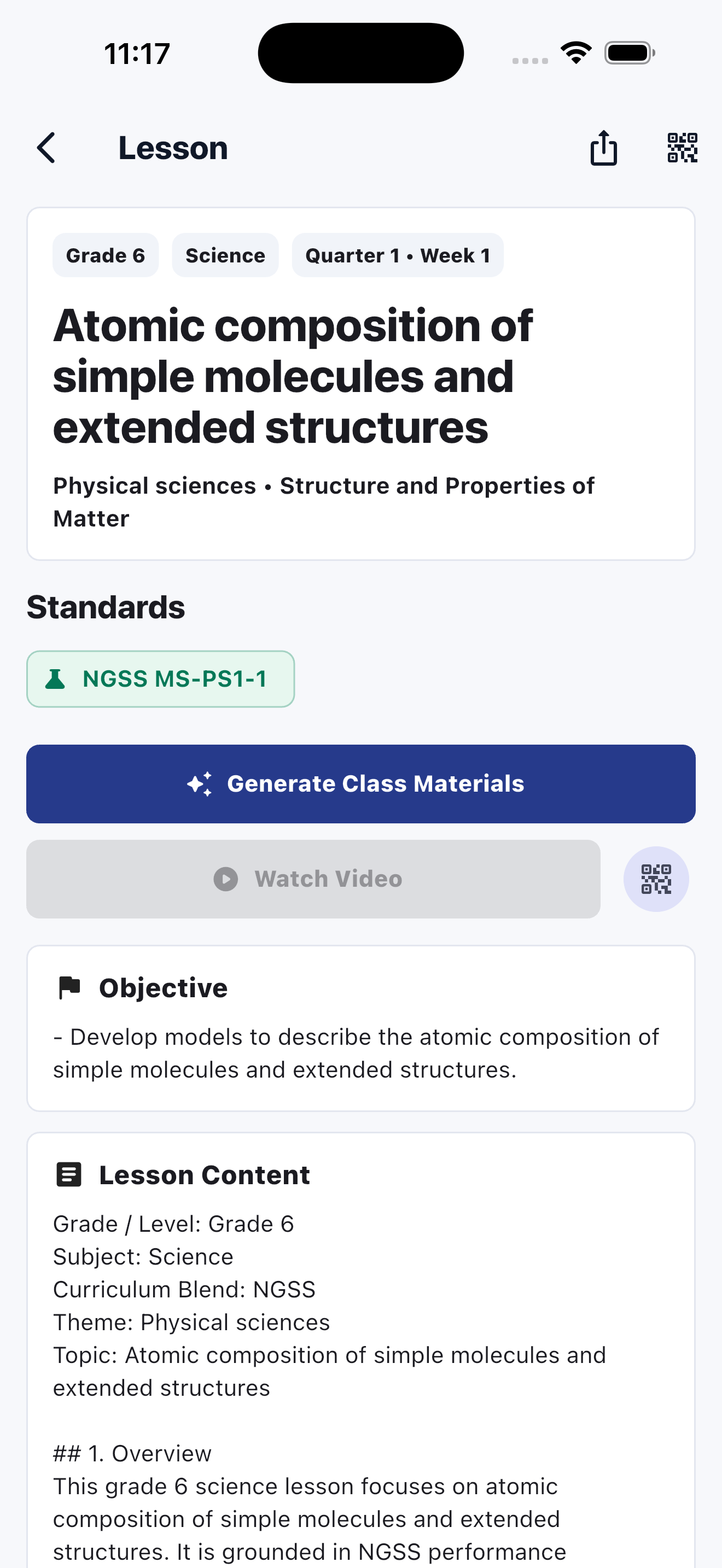
Once a lesson is open, the teacher can read detailed notes, generate support materials, open video, export a plan, or share securely without losing lesson context.